What Is a Digital Badge?
A digital badge is an indicator of accomplishment or skill that can be displayed, accessed, and verified online. In the education community, badges offer opportunities to demonstrate professional and personal growth: educators and students who earn digital badges may share them to gain recognition for specific knowledge, accomplishments, or skills acquired through professional learning or coursework.
Most people are familiar with the concept of a physical badge, but digital badges weren’t really on anyone’s radar until around 2011, when Peer 2 Peer University and The Mozilla Foundation co-authored a paper titled “An Open Badge System Framework.” In this paper, a badge was defined as “a symbol or indicator of an accomplishment, skill, quality, or interest.” According to the report, badges “have been successfully used to set goals, motivate behaviors, represent achievements, and communicate success in many contexts." The report adds that "badges can have a significant impact, and can be used to motivate learning, signify community, and signal achievement."
The Open Badge Standard
The Mozilla Foundation would go on to develop an open technical standard called Open Badges in 2011, which served as a common system for issuing, collecting, and displaying digital badges across various websites and non-profit organizations. Contextual information like “what the badge represents, how it was earned, when they earned it, who issued it” is critical to the definition of a badge in this standard.
Open Badges 1.0 was launched in 2012, and by 2013, over 1,450 organizations were issuing badges. The Badge Alliance, a network of organizations and individuals committed to building and advancing Open Badges, was formed in 2014. In 2014, Concentric Sky and edX partnered to launch Badgr, an open-source project to serve as a reference implementation for Open Badges. In 2015, IMS Global Learning Consortium announced its commitment to Open Badges as an interoperable standard for credentials, and later in 2016, it was announced that stewardship of the Open Badge standard itself would officially transition to IMS Global on January 1, 2017.
Find more details on the latest Open Badges Technical Specification at IMS Global.
In addition to the image-based design we think of as a digital badge, badges contain metadata to communicate details of the badge to anyone wishing to verify it or learn more about the context of the achievement it signifies. This data should provide all the information needed to understand what the badge signifies: Who received the badge? Who issued the badge? What was the criteria for issuing the badge? Does it expire?
Some or all of this information will be displayed in a visual format wherever the badge is displayed, and it is also stored in the digital badge's metadata so it can be verified at any time, even if you only have the image.
Other information, such as tags, expiration date, and whether the credential was revoked, is an optional field that may or may not be displayed with the badge image, but will always be included in the metadata if it is relevant to the badge.
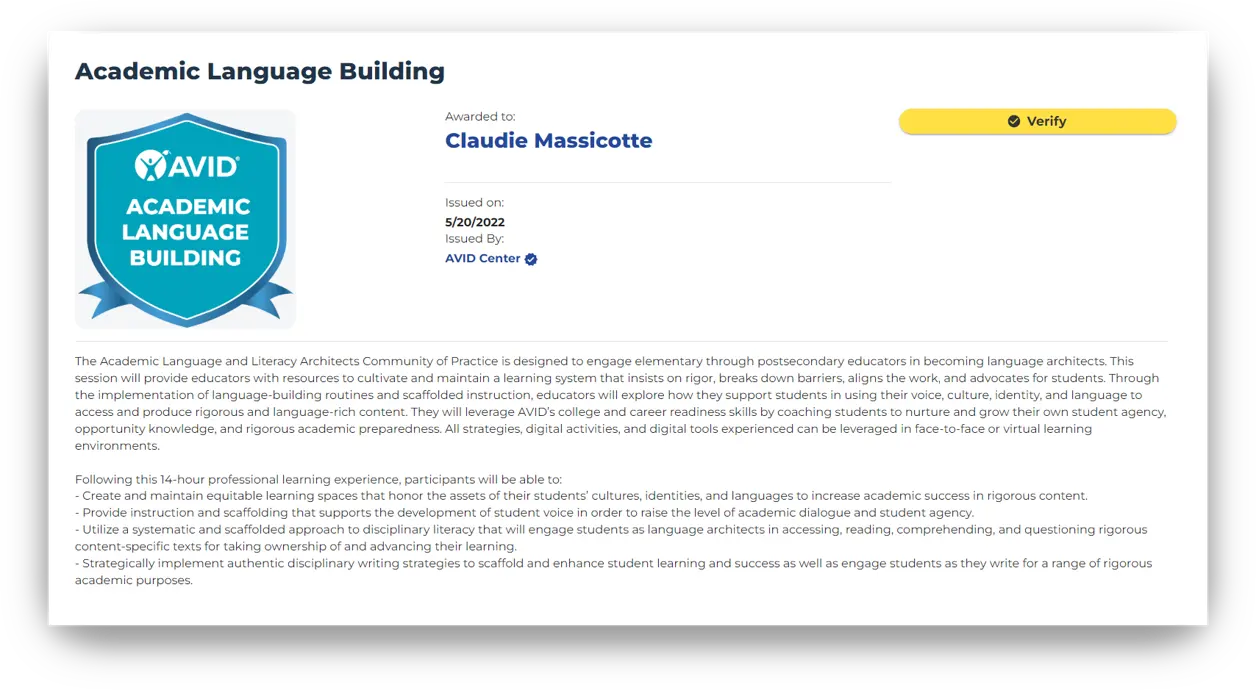
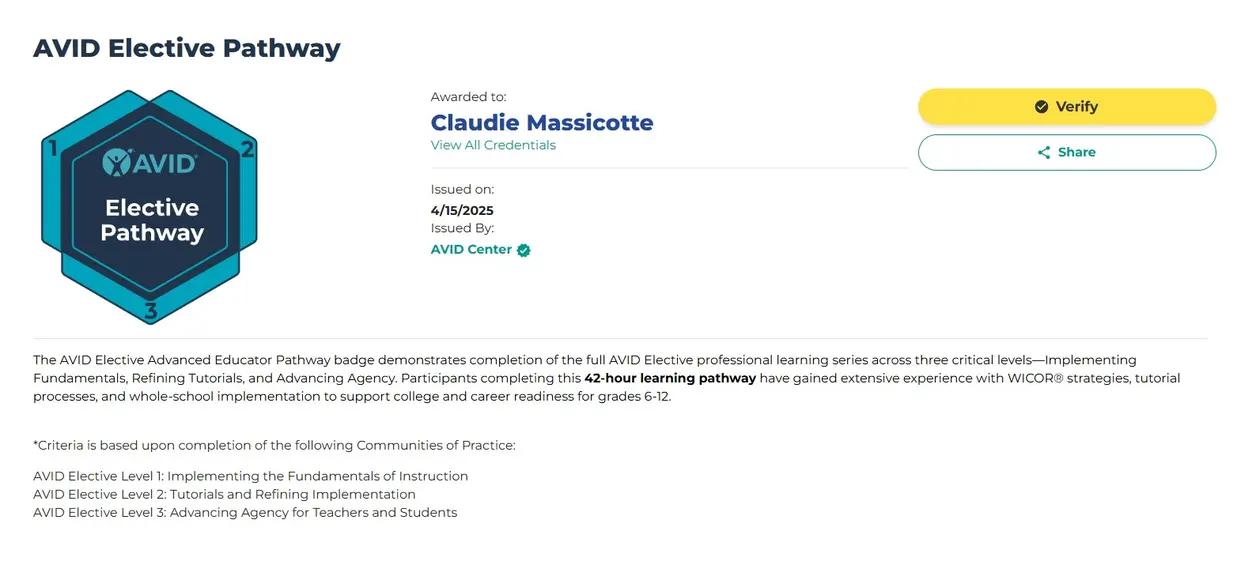
An example badge (issued using AVID Digital Badging) is shown above with metadata displayed. The badge image contains a copy of all the information on display (issue date, badge name, etc.) that can be retrieved later, even without visiting the web page.
Open Badge Metadata
In order for a digital badge to be "Open Badge Compliant," it needs to have certain required metadata:
- Badge Name
- Badge Criteria (often written in the description section)
- Badge URL
- Issue Date
- Issuer (an account or record associated with the organization issuing the badge—at least their name)
- Recipient (an email or user account associated with the badge owner)
Frequently Asked Questions
Congratulations! All that hard work paid off, and you now have a brand new digital credential. Here's how you can get the most use and value out of it.
Accessing My Credential
When a credential is issued to you via AVID Digital Badging, an email containing a link to view your credential will be sent to you. Keep this email in order to access your digital badge. The link within it is for you only and should be kept secret! To access your digital badge, simply click View My Badge to navigate to your very own Credential page, where you can view all your AVID Digital Badges and access sharing options.
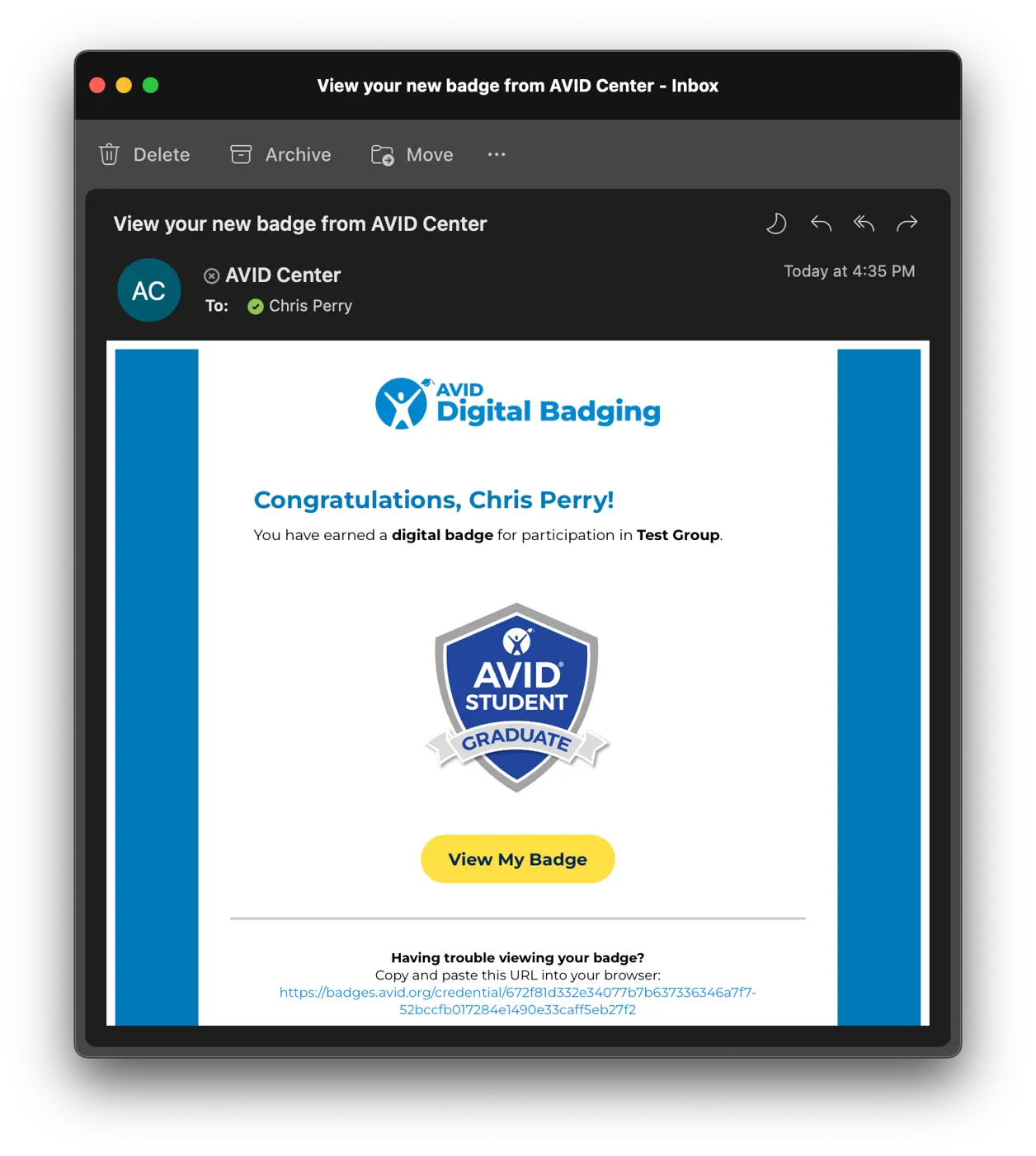
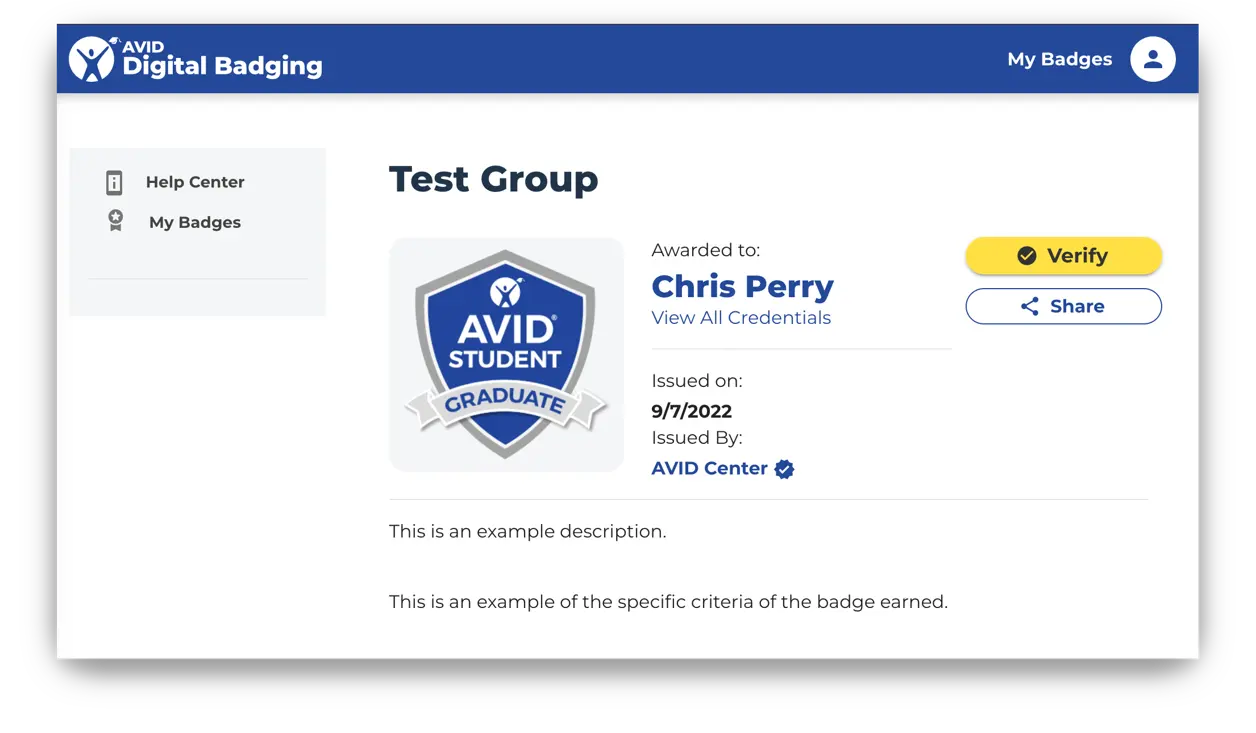
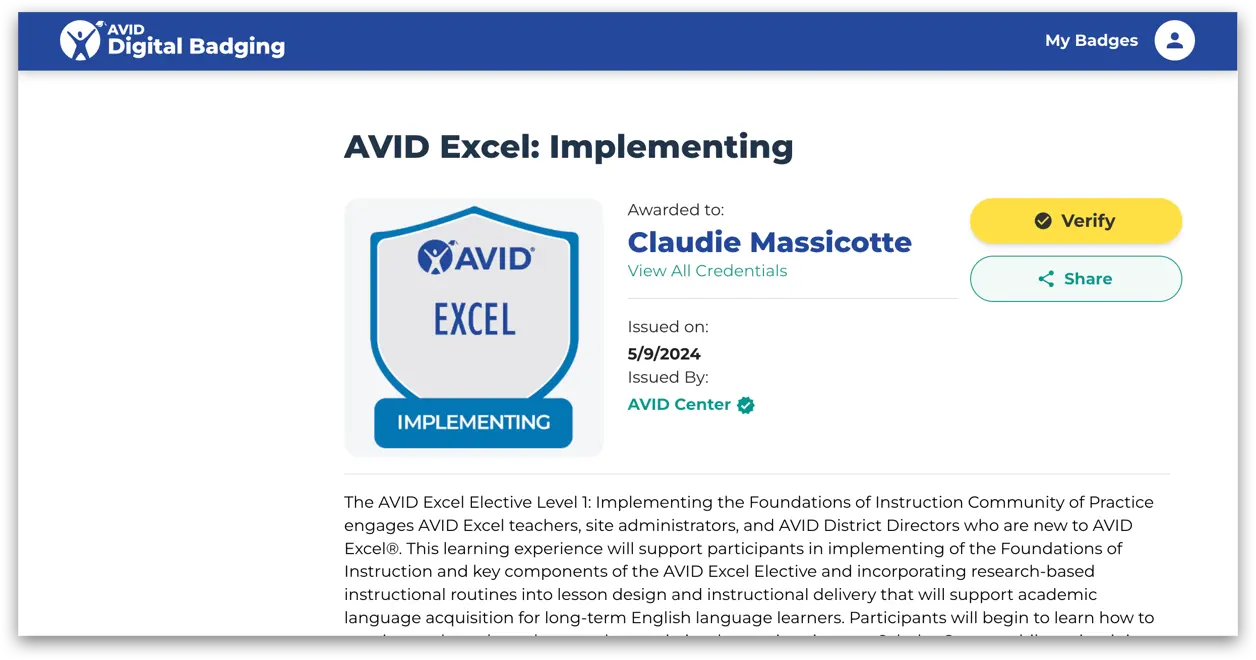
Here is a sample of what your digital badge will look like. The badge description, along with the learning objectives if the badge was earned through an AVID professional learning opportunity, is displayed beneath the credential image.
Accessing All Your AVID Digital Badging Credentials
Click View All Credentials beneath your name on your Credential page to see and interact with all the credentials issued to you by AVID Digital Badging.
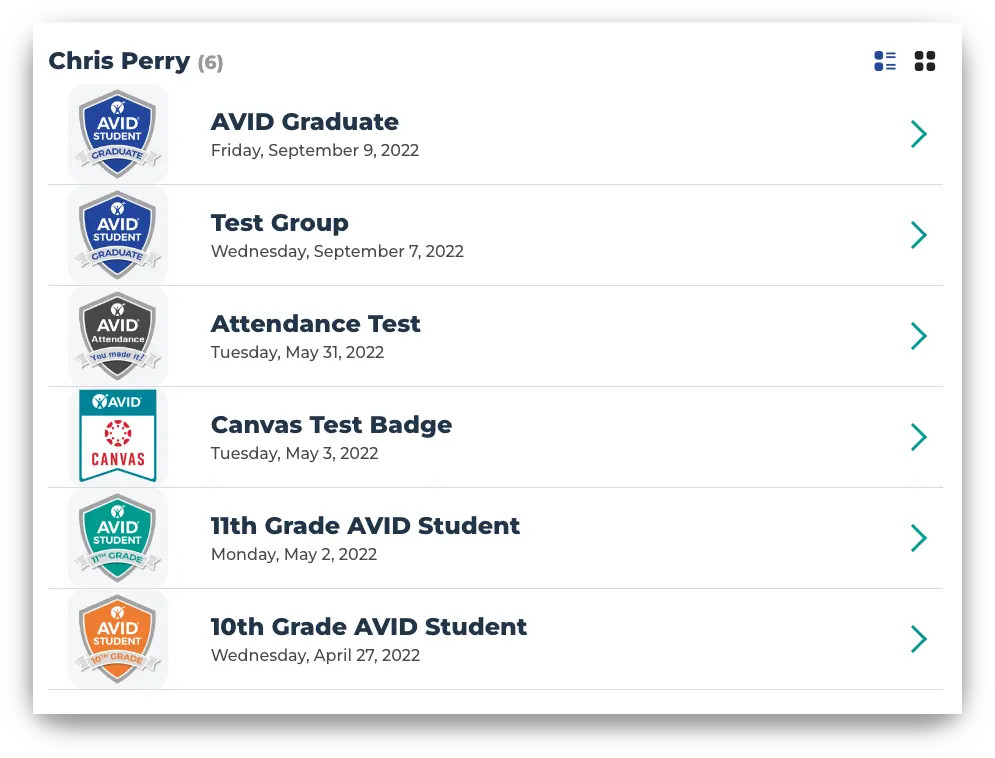
To view and access all your AVID Digital Badges, you can log in to AVID's Digital Badging Platform.
Go to badges.avid.org.
Click Sign In in the top right-hand corner of the page.
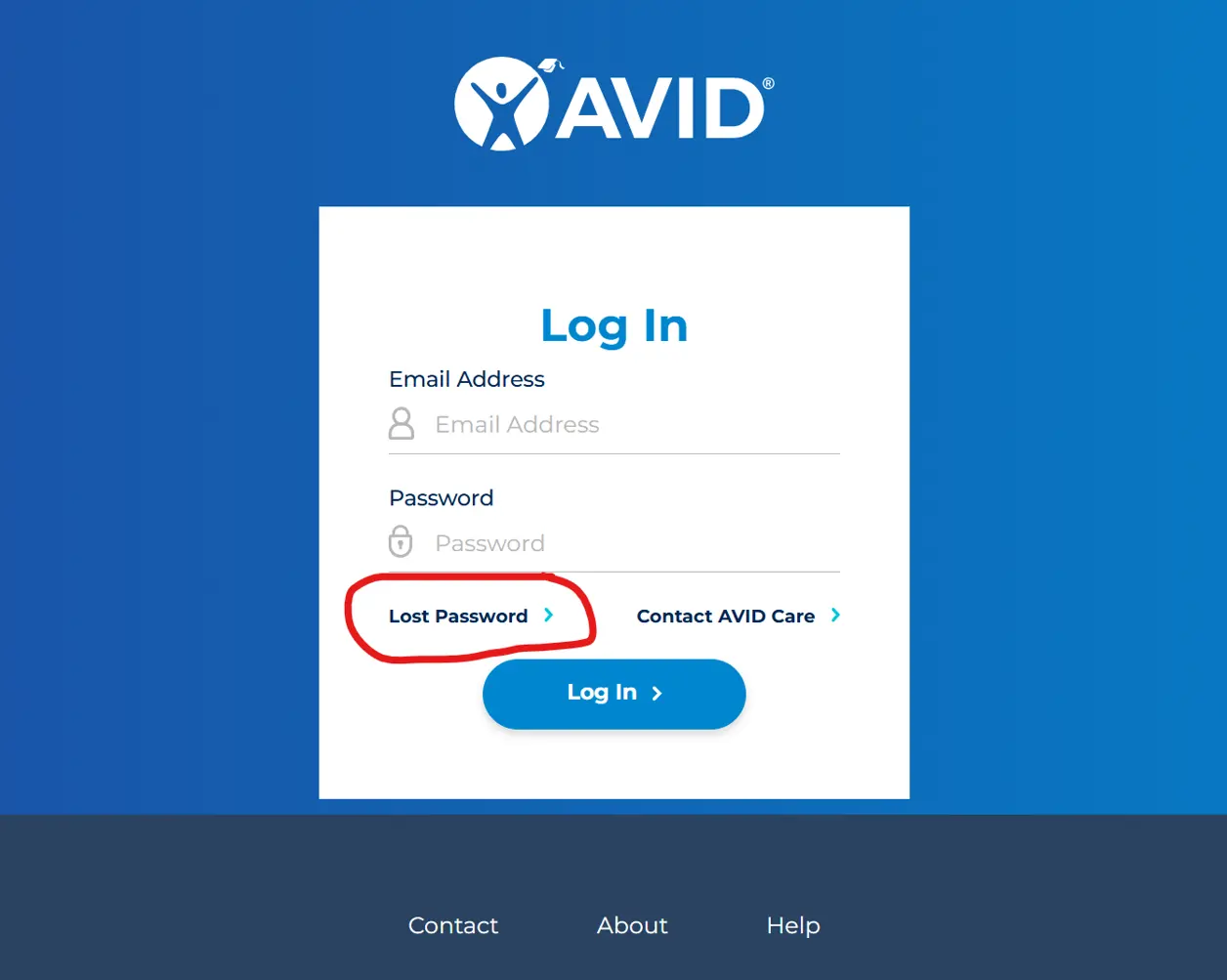
Use your MyAVID login and password when the AVID Login page appears.
The platform's landing page will list all digital badges you have earned from AVID. You can click on the badge title or the arrow to open up the badge details.
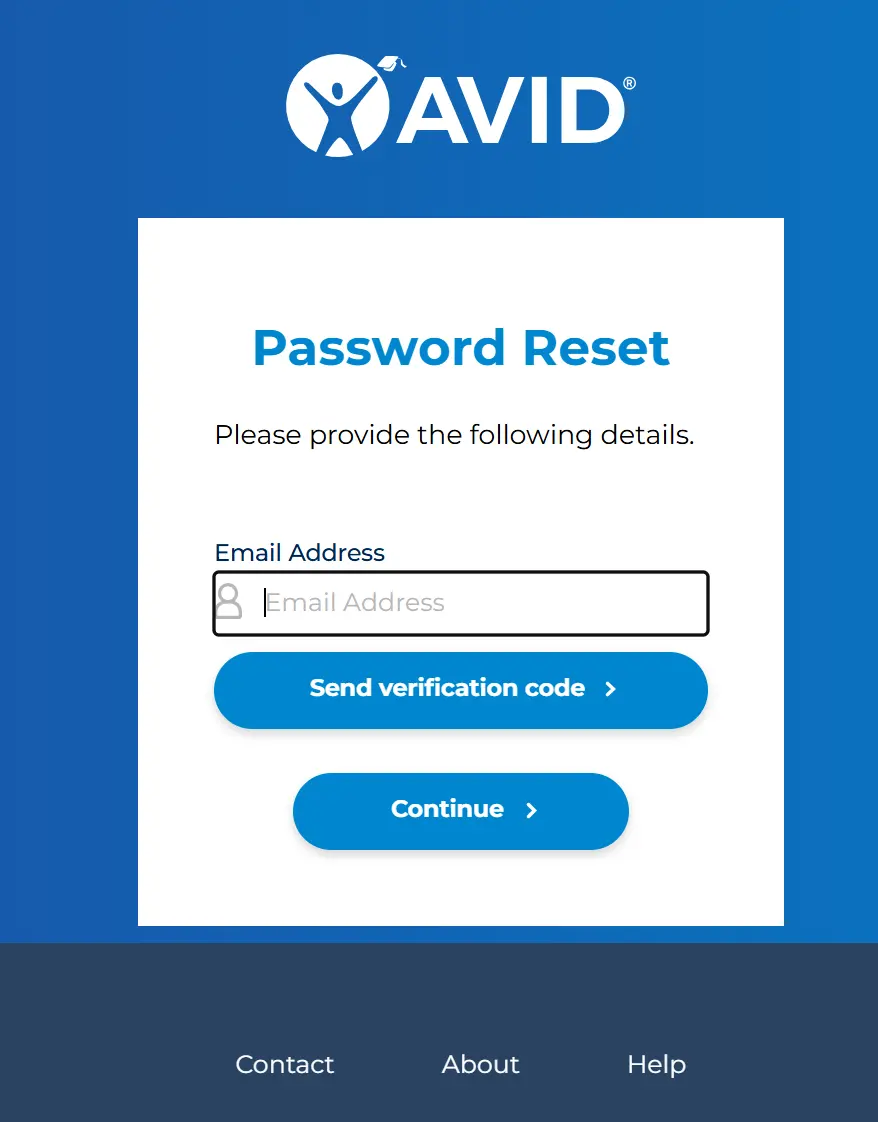
Note: If you don't remember your password you can click on the Lost Password link.
Fill out the Password Reset form to receive an email to help you reset your password.
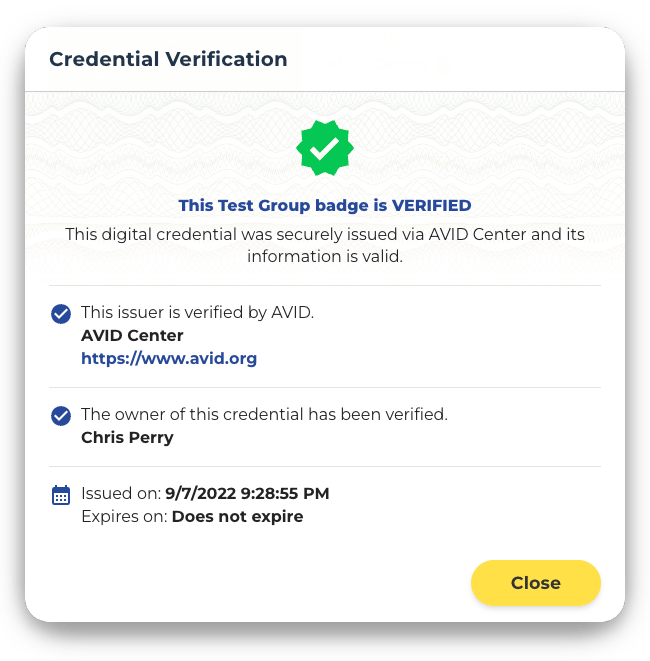
When badge recipients view an issued Open Badge, they may initiate a verification process that communicates with the server hosting the original badge metadata. The server verifies that the badge is valid and returns confirmation details.
Verify the Badge on AVID Digital Badging
For any digital badge issued by AVID, simply press the Verify button on your public Credential screen. You will see a pop-up for credential verification with all the verification details.
Verify the Badge on Other Platforms
All AVID Digital Badges are Open Badges compliant and can be verified via third-party platforms. You can upload your badge image to any online Open Badges Validator, such as Badge Check or IMS Global, to verify it there as well!
Sharing your Credential with Others
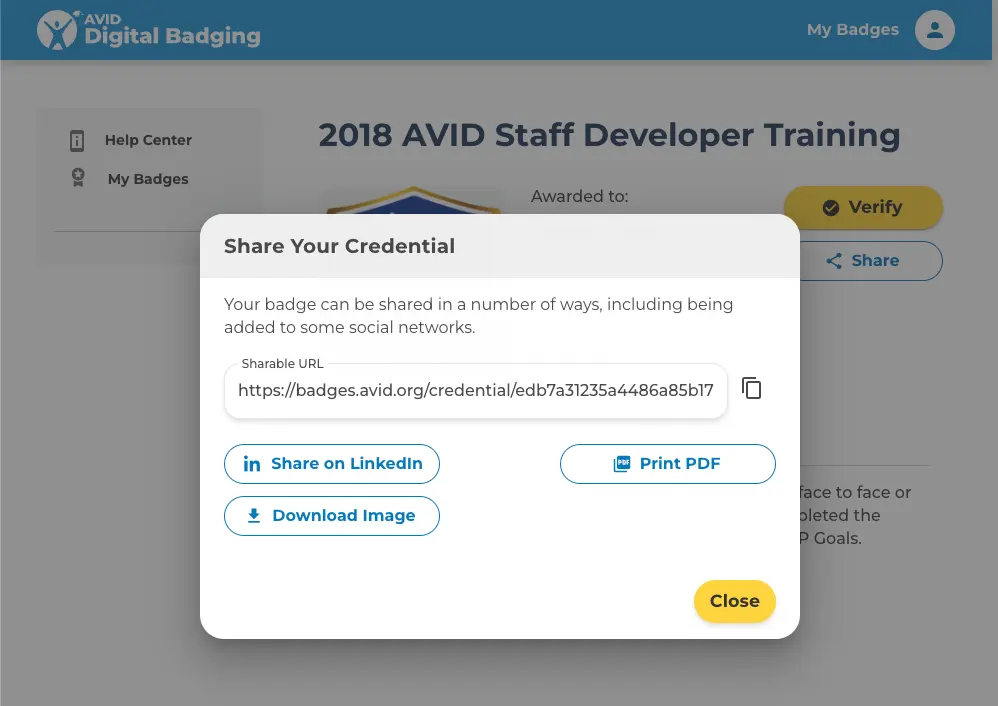
Click the "Share" button in the top right corner on your Credential page to access the sharing features of your Credential. You have many options to share your digital badge:
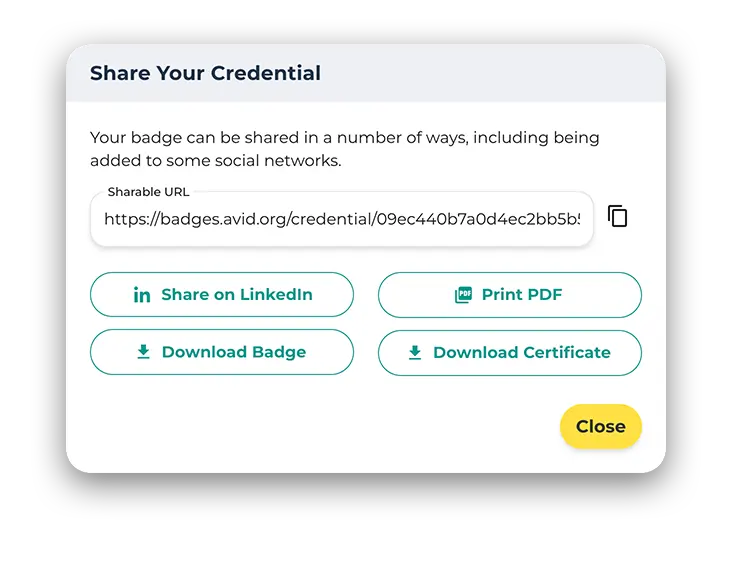
Sharable URL: Use this URL if you want to share a public link to your AVID Digital Badge with others.
Share on LinkedIn: Share your Digital Badge on the LinkedIn social platform. (You will need to login to your LinkedIn account).
Download Badge: Download the Digital Badge to your device, this image contains all the meta-data required to verify your achievement.
Print PDF: Click this button to download a PDF version of your Digital Badge, suitable for printing.
Download Certificate: On select Badges, this button will allow you to download a PDF Certificate of the badge, suitable for printing.
Stackable badges are digital credentials that build on one another to represent a learning or achievement pathway. Rather than standing alone, each badge you earn contributes to a larger skill set, competency, or professional milestone.
For example, you might earn individual badges for completing specific courses. As you complete a full series of courses or meet a broader set of criteria, these badges can “stack” to unlock a higher-level credential, demonstrating your continued growth and mastery in a particular area.
AVID officially launched the stackable badging pathway in 2023 and began issuing these badges after summer 2025. Because the pathway started in 2023, only badges earned from that year forward are eligible to count toward a stackable badge.
Why Stackable Badges Matter
Stackable badges provide a clear way to:
- Track your progress across multiple learning experiences.
- Showcase your commitment to ongoing professional development.
- Build toward a larger goal or certification recognized by your organization or field.
Each badge you earn is a meaningful step that, when combined with others, tells a bigger story about your learning journey.
Embed your AVID Digital Badge into your email signature so that everyone seeing your emails has the opportunity to check out your live credential. Embedding in an email signature works best with badges rather than certificates, which can look too big and bulky at the bottom of an email.
Embed the Badge
- Go to the credential view of the badge you would like to embed.
- Click Share and then click Download Image.
This is your personal badge image, which contains all the verification information.
Embed Into a Gmail Signature
- Open your Gmail account in another tab and click Settings (the cog icon) at the top right-hand corner of your view. In the dropdown menu, click See all settings.
- Scroll down to the Signature section. (You may create a new signature if necessary.)
- Click Insert Image at the top of the signature toolbar, then on the Upload tab.
- Select or drag the badge image that you downloaded from the Share Credential window earlier.
- Once the badge image has appeared, you can click the image and resize it to small, medium, or large.
- Optional:
- Return to the tab of your credential view and copy the Shareable URL from the Share Your Credential window.
- Return to the tab with your Gmail account signature settings, highlight the badge image, and click Link at the top of the signature toolbar.
- Paste the Shareable URL you just copied into the box marked To what URL should this link go?, then click OK at the bottom right-hand corner of the window.
- Once you are happy with the appearance of your overall signature line, scroll to the bottom of your Gmail settings and click Save Changes.
Embed Into an Outlook Signature
- Open Microsoft Outlook and click on New Email.
- In the new message window, click on Signatures.
- Either create a new signature or select an existing one to edit.
- To the far right of the signature editing toolbar, select Add Image and select the image of the badge that you just downloaded.
- You can resize the image by selecting it and dragging the scale controls.
- Optional:
- Return to the browser tab of your credential view and copy the Shareable URL.
- In Outlook, highlight the badge you have just uploaded to your signature and click Link at the far right-hand side of the toolbar.
- Paste the Shareable URL into the Address field at the bottom of the window that appears, then click OK.
- Once you are happy with the appearance of your overall signature line, save and close the Outlook signatures window.
Other Email Clients
- Downloading the PNG of your badge using the Download Image button in the credential view.
- Go into the signature settings of your particular email client and insert the PNG.
- Highlight the badge image and use your email client's 'Link' function and paste your credential's 'Sharable URL' into it. The Sharable URL is the public web address for your digital credential.
- Don't forget to hit save on any changes you make to your email signature.
Note: If you would like to add multiple badges to a single signature, consider creating a GIF that cycles through your credentials. You may use free online tools such as Canva, GIPHY's GIF Maker, or Ezgif.com to create a mini slideshow that cycles through your individual badge images. Download the GIF file, then follow the same upload and linking steps outlined above.
Congratulations on completing your AVID training!
We value and appreciate all participants’ time and commitment to professional growth.
If you attended all sessions of an AVID Community of Practice (CoP) through an AVID Path to schoolwide®, AVID Virtual Live™, AVID Summer Institute, or Summer Institute Pop Up but do not see your digital badge for your CoP under My Badges, please reach out to our AVID Care Team at 1-833-284-3227 or avidcare@avid.org.
AVID Center maintains attendance records for its professional training sessions; however, AVID Care can only retrieve earned digital badges or certificates of completion issued for CoPs completed within the last 5 years.
Note: AVID Center began offering AVID Digital Badges for all Path and Summer Institute COPs in 2021 and for AVID DigitalXP® and AVID ElevateXP® in 2020. Prior to 2020, only a pilot group of CoPs were issued badges. If you attended a professional learning event prior to 2020, you should have received a certificate of completion in lieu of an AVID Digital Badge. Please reach out to your school or district if you need help retrieving evidence of attendance at an AVID professional learning event prior to these dates.
What Is a Certificate?
Schools, districts, or states may occasionally require a certificate of completion as proof of AVID professional learning. Participants who completed their AVID Community of Practice requirements in May 2024 and later are able to download and print their own certificate of completion on the AVID Digital Badging platform.
Accessing My Certificate
View your Community of Practice badge on the AVID Digital Badging platform.
Click the Share button on your Credential page to access the sharing features of your credential:
Next, click Download Certificate:
AVID Digital Badging will now generate a certificate that includes your name, the Community of Practice name, the Community of Practice hours, and the issue date. Each certificate is verifiable through a QR code.
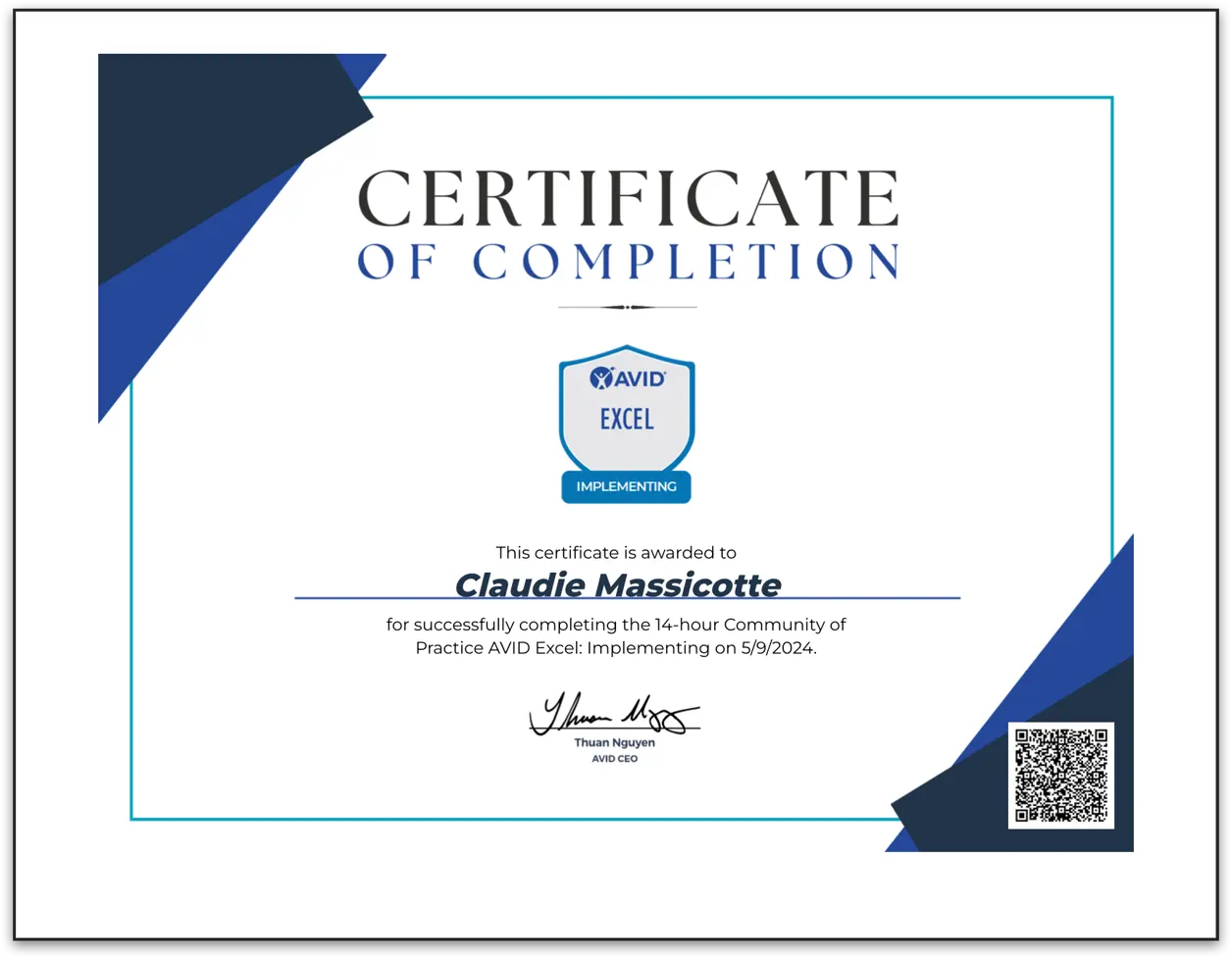
Note: Participants who attended an AVID Community of Practice before May 2024 and received a digital badge may be able to fulfill the same requirements by selecting the Print PDF option. This PDF, available for every AVID Digital Badge, provides the same information, along with a description of the Community of Practice and its performance objectives.
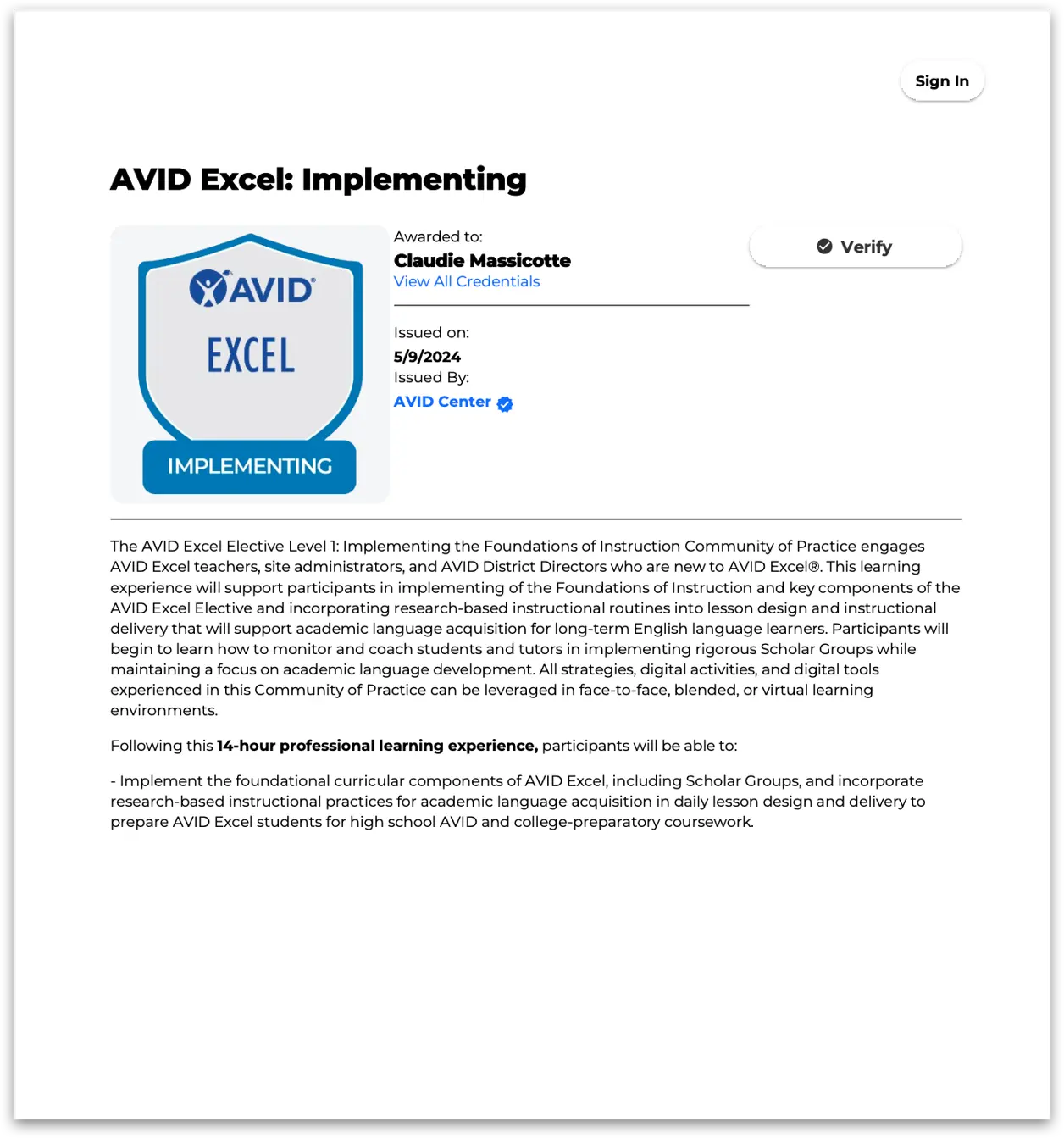
All AVID Digital Badges are attached to your primary MyAVID email address. If you have changed your email address or need to update your MyAVID profile, your credentials may no longer appear on your AVID Digital Badging dashboard. To retrieve all of your earned badges, please reach out to our AVID Care Team at 1-833-284-3227 or avidcare@avid.org.
Support for AVID Professional Learning Digital Badges
You should receive your AVID Digital Badge via email 24 hours following completion of your AVID professional learning experience if you:
- Attended each day/module of the experience.
- Completed all assignments in your eLearning course (Feedback, Professional Learning Reflection, and Exit Survey).
- Clicked on the Requesting your AVID Digital Badge page in your eLearning course.
Please review the accordions below if you have completed these requirements but did not receive your AVID Digital Badge.
To review your attendance records, log in to your MyAVID account. Select Event Registration in the top menu, then Search Registrations.
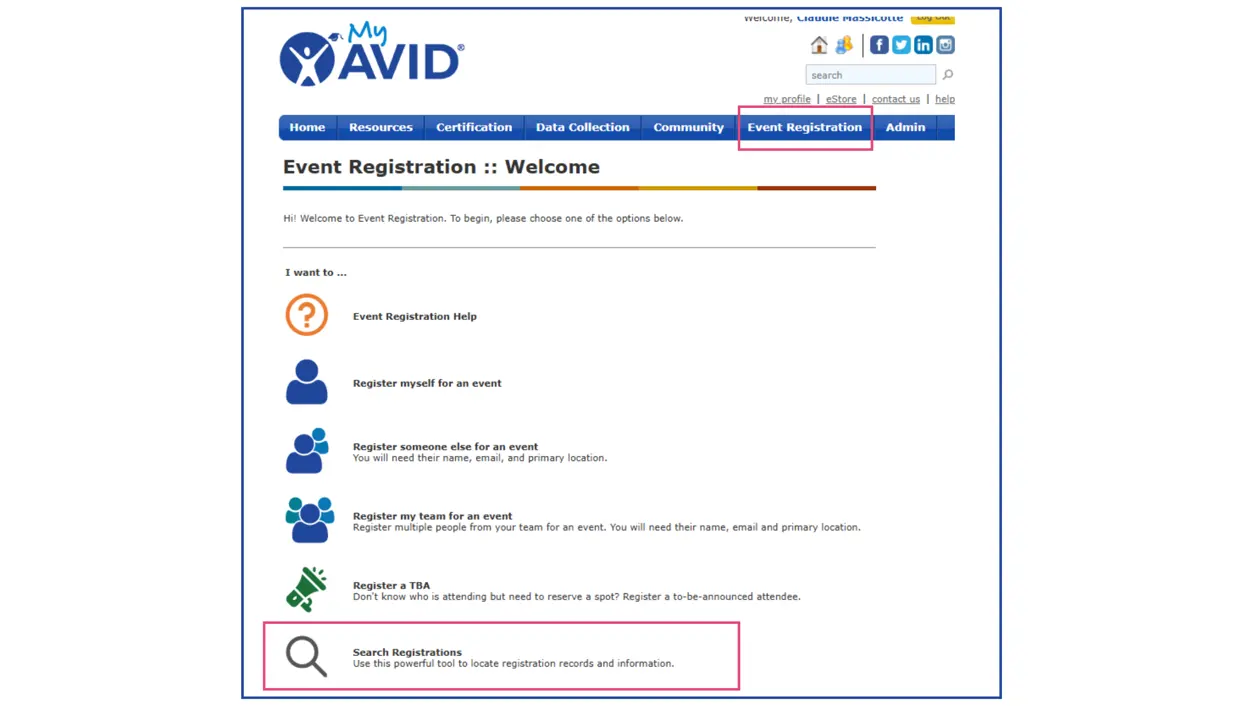
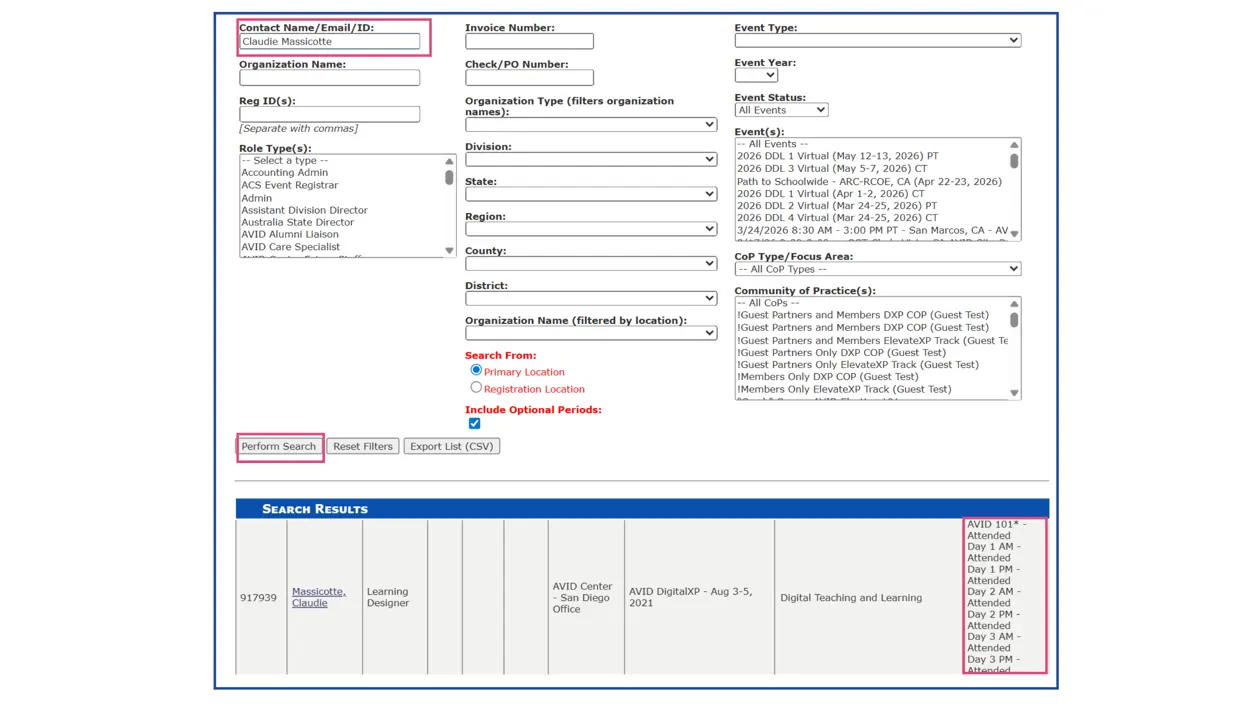
Next, enter your name and select Perform Search in our Registration Status Tool. Your attendance records will appear in the results below.
You can review your assignment completion status in Module View in your eLearning course. A checkmark beside each assignment and the Requesting your AVID Digital Badge page indicates completion of these steps.
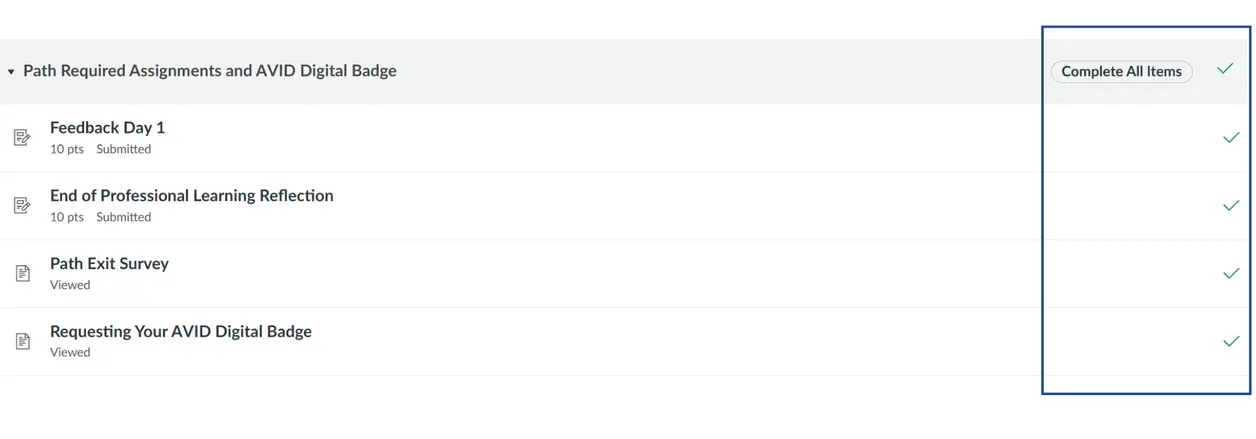
Note: After completing your feedback, you must click on the Requesting your AVID Badge page and wait for the "Thank You" confirmation message to appear. This final step ensures your request has been successfully submitted.
Your AVID Digital Badge will be emailed to you within 24 hours of submission, provided you have 100% attendance.
Thanks to the robust analytics of AVID's eLearning platform, AVID Care may be able to demonstrate your attendance by reviewing your activity on the platform or the recordings of our virtual events. If you would like to request an attendance review, please contact AVID Care at avidcare@avid.org or 1-833-284-3227.
Support for AVID Elective Teachers
After completing the AVID Elective Badging Unit with your Grade 9, 10, or 11 students:
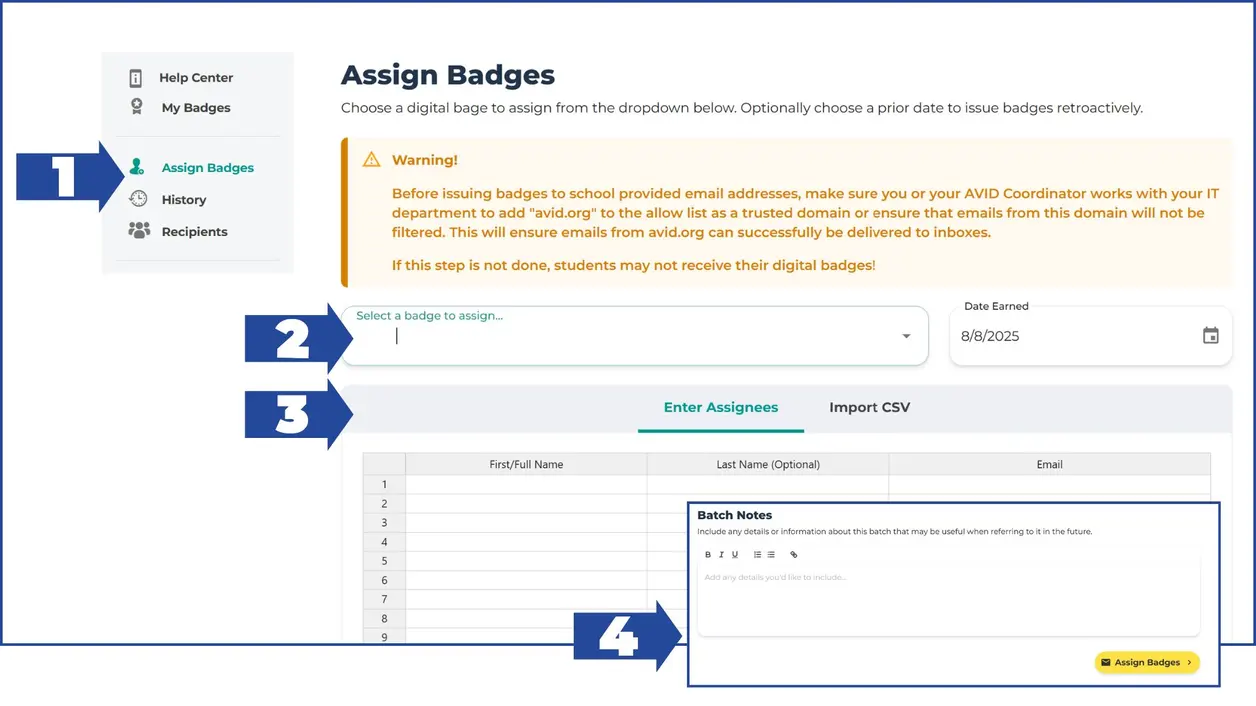
- Log in to the AVID Digital Badging platform and select Assign Badges in the left menu.
- Select the badge you wish to assign (Grade 9, 10, or 11).
- Enter student information (first name, last name, and email address) or upload a CSV file with this information.
- Add a note to help track the groups of students who have been sent digital badges (optional) and click the yellow Assign Badges button.
You may also watch the Introducing AVID Badging walkthrough video or open the PDF file below for a visual guide.
Award AVID Student digital badges prior to this lesson plan.
This tip sheet will walk you through the process. If your students do not receive their badges via email, have them check their junk folder. If they still haven't been delivered, work with your district technology department to ensure that avid.org is allowlisted showing that it is a trusted email address for your students. If you have any additional questions, please contact AVIDCare: (833) 284-3227 or AVIDCare@avid.org.
Note: AVID Elective Student Digital Badges may also be assigned retroactively using the same process.
Before assigning badges:
- Contact your district technology department to confirm student email addresses can receive messages from @avid.org.
- Ask them to add @avid.org to their "allowlist" to avoid blocking or spam filtering.
After assigning badges:
- Have students check their junk, spam, or “other” folders.
- Confirm that their email address was entered correctly during the assignment process.
If students still haven’t received their badges, please contact AVID Care at avidcare@avid.org or 1-833-284-3227.
AVID protects student information in full compliance with the Family Educational Rights and Privacy Act (FERPA) and the Children’s Online Privacy Protection Act (COPPA). All student data is handled securely to ensure privacy and safety. Therefore, our digital badging programs are only eligible for students aged 13 years or older.