Google for Education
Google for Education is a suite of cloud‑based tools—including Google Classroom, Docs, Slides, Drive, Forms, and additional AI‑supported learning features—designed to enhance teaching, streamline workflow, and expand student collaboration. Widely used across K–12 environments, Google for Education provides secure communication, accessibility supports, real‑time editing, classroom organization tools, and seamless integration with Chromebooks. Educators rely on Google’s ecosystem to support instruction, assessment, and the development of digital citizenship.
Tech Level

Intermediate
Grade Bands
K-12
Explore the Tool
Getting Started
Visit https://edu.google.com/ and sign in with a school‑issued Google account.
Open Google Classroom to create classes, assignments, and announcements.
Use Docs, Slides, Forms, and Drive to design, distribute, and collect student work.
Key Classroom Features
Google Classroom Integration: Streamlines assignment distribution, grading, and feedback.
Real-Time Collaboration: Students and teachers co-edit in Docs, Slides, and Sheets.
Drive Organization: Cloud‑based storage to manage portfolios, projects, and shared resources.
AVID Strategy Connections
✏️ Writing
Collaborative Documents: Students co-write essays, reflections, or lab reports in Google Docs.
Writing to Learn: Teachers embed quickwrites, summaries, or CER tasks directly in Classroom posts.
💡 Inquiry
Question-Driven Research: Students use Docs and Slides to design inquiry projects and collect evidence.
Forms for Inquiry Logs: Digital forms allow students to track predictions, questions, and findings.
💬 Collaboration
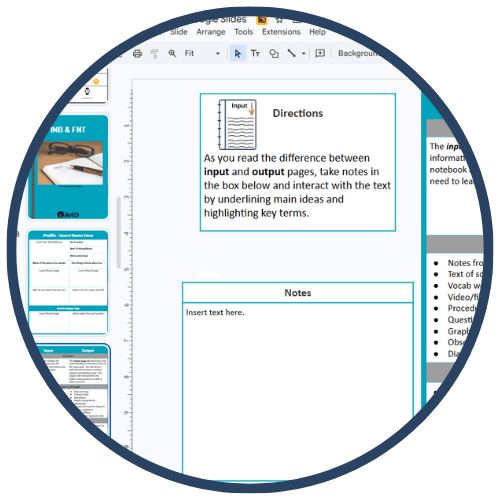
Shared Slides: Groups build slide decks with one slide per student or section.
Commenting Tools: Students provide structured peer feedback in Docs or Slides.
(WICOR alignment sourced from the district’s AVID guidance)
🗂️ Organization
Drive Folders: Students maintain digital notebooks or portfolios.
Classroom Stream & Topics: Teachers structure lessons into manageable pathways.
📖 Reading
Digital Annotations: Students annotate PDFs or texts using comments in Docs or Slides.
Reading Supports: Teachers embed videos, links, or visuals to support comprehension.
Accessibility Spotlight
Google for Education supports inclusive learning through built‑in accessibility tools such as voice typing, screen reader compatibility, translation features, closed captions in Slides and Meet, and multimodal formats across Workspace apps. Real-time collaboration, customizable sharing settings, and structured Classroom workflows promote clarity and reduce cognitive load. These features provide multiple entry points for multilingual learners, neurodivergent students, and learners requiring processing supports—ensuring equitable access to rigorous academic tasks.