Scratch
Scratch is a free programming language and online community where students can create interactive stories, games, and animations. Developed by the Scratch Team at the MIT Media Lab, Scratch helps young people “think creatively, reason systematically, and work collaboratively.
Tech Level

Intermediate
Grade Bands
3-10
Explore the Tool
Getting Started
Go to scratch.mit.edu.
Explore Starter Projects to introduce students to basic building blocks and workflows.
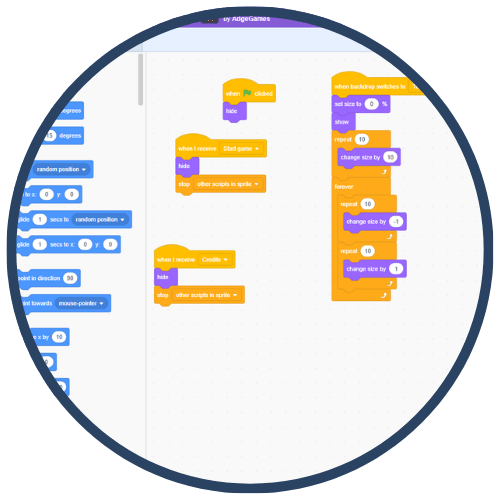
Introduce core interface elements: the Stage, Sprites, and Scripts/Blocks area (as described in the UAB Scratch guide).
Have students create a simple project (e.g., animate a sprite, or add movement blocks) and test changes immediately.
Key Classroom Features
Create + Share: Students can create projects and share them with others in the Scratch online community.
Remix Culture (learning from others): Students can learn by exploring existing projects and building on them (via remixing). (This is a common Scratch practice; if you want it explicitly cited from a specific page, I can pull it from Scratch’s “Remix” documentation in a follow-up.)
Projects across subjects: Scratch supports creating interactive stories, games, and animations, which can be used to demonstrate learning in many content areas.
Teacher Accounts: Scratch offers educator teacher accounts to make it easier to create student accounts and manage student projects and comments.
AVID Strategy Connections
✏️ Writing
Storyboard & Script Writing: Students write a storyboard and narration before building an interactive story or animation.
Reflection Logs: Students write brief “debug notes” explaining what they changed and why (supports metacognition).
💡 Inquiry
Hypothesis Testing: Students predict what a set of blocks will do, run the program, and revise based on evidence.
Debugging Questions: Students ask “What is this block doing?” and “Which block caused the outcome?” while troubleshooting.
💬 Collaboration
Pair Programming: Students collaborate as driver/navigator while building and testing a project.
Peer Feedback: Students share projects and give feedback on clarity, usability, and creativity.
🗂️ Organization
Project Planning: Students organize projects into stages (plan → build → test → revise → share).
Block Category Organization: Students learn to locate and use block categories to structure a program (movement, events, etc., as described in the UAB guide).
📖 Reading
Accessibility Spotlight
Scratch supports accessibility by lowering the barrier to entry for programming through a visual, block‑based interface, helping students focus on logic and creativity rather than syntax. The ability to create projects using sprites, visuals, and interactive elements can provide multiple ways for students to express understanding beyond traditional written outputs. Teacher Accounts can also help educators manage student participation and projects more easily.