ThingLink
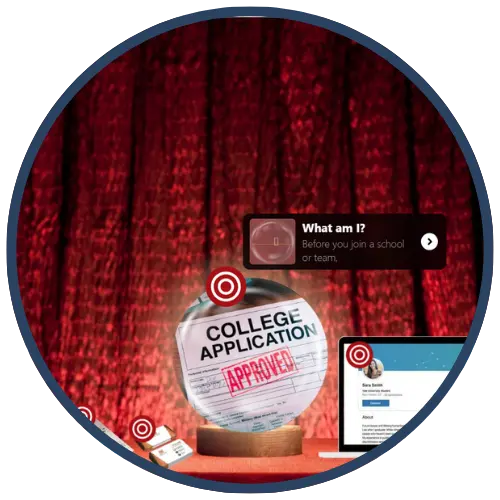
ThingLink is an interactive media creation platform that allows teachers and students to transform images, videos, 360° media, and virtual tours into engaging learning experiences by adding clickable hotspots. These hotspots can include text, audio, video, links, quizzes, and other embedded content. In classrooms, ThingLink is used to support inquiry‑based learning, digital storytelling, visual annotation, and multimodal demonstrations of understanding.
Tech Level

Intermediate
Grade Bands
K-12
Explore the Tool
Getting Started
Go to https://www.thinglink.com/edu and create an educator account.
Upload an image, video, or 360° media (or choose from available media sources).
Add interactive hotspots that include text, links, audio, video, or embedded tools.
Share the finished ThingLink via link, embed, or LMS integration.
Key Classroom Features
Interactive Hotspots: Add layered content (text, audio, video, links, quizzes) to visuals.
Multimedia Support: Works with images, videos, 360° photos, and virtual tours.
Clever & LMS Integration: Supports single sign‑on and classroom workflows through Clever and LMS platforms.
Student Creation & Viewing: Teachers can create content or assign students to build their own interactive projects.
Any‑Device Access: Works on Chromebooks, tablets, laptops, and mobile devices.
AVID Strategy Connections
✏️ Writing
Multimodal Writing: Students explain concepts using text embedded in hotspots alongside visuals.
Caption & Annotation Tasks: Learners write concise explanations connected to specific visual elements.
💡 Inquiry
Exploration-Based Learning: Students investigate topics by clicking through linked resources and media.
Question Pathways: Teachers design hotspot sequences that guide inquiry and discovery.
💬 Collaboration
Shared Visual Projects: Groups co‑create interactive images or maps to represent collective understanding.
Peer Feedback: Students review and comment on each other’s ThingLinks using structured prompts.
🗂️ Organization
Visual Organization: Information is chunked and layered to reduce cognitive overload.
Concept Mapping: Students organize ideas spatially through visuals rather than linear text.
📖 Reading
Reading Visual Texts: Students interpret images, diagrams, and media as primary sources.
Embedded Reading Supports: Hotspots provide definitions, context, or translations alongside text.
Accessibility Spotlight
ThingLink supports inclusive learning by offering multimodal access to content through visuals, audio, video, and text. Its accessibility features include screen‑reader compatibility, immersive reading tools, and translation support for multilingual learners. Because information is layered and self‑paced, students can engage with content in manageable chunks, making ThingLink especially effective for students who benefit from visual scaffolds, flexible pacing, and alternative ways to demonstrate understanding.