Awesome Screenshot
Awesome Screenshot is a screen‑capture and screen‑recording tool that lets users take annotated screenshots, record their screen with or without a webcam, and instantly share visuals through links or downloads. In classrooms, it supports modeling, giving feedback, creating tutorials, documenting student learning, and enhancing digital communication.
Tech Level

Beginner to Intermediate
Grade Bands
3-12
Explore the Tool
Go to https://www.awesomescreenshot.com/ and install the Chrome/Edge extension.
Create a free account to save and organize recordings and screenshots.
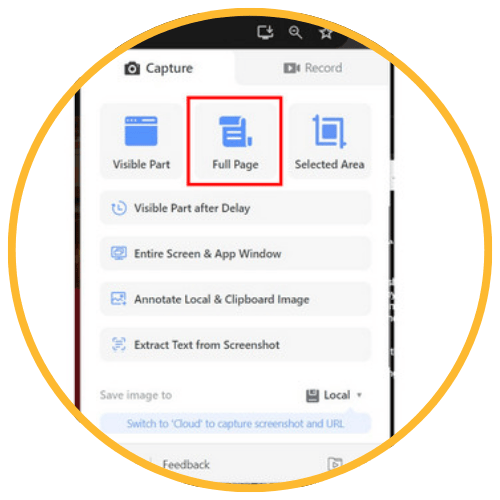
Choose Capture, Record, or Annotate from the toolbar to begin.
- Screenshot + Annotation Tools: Add shapes, arrows, blur, text, or highlights to guide student attention.
- Screen Recording: Record lessons, instructions, or modeling with an optional webcam overlay.
- Instant Sharing: Generate shareable links for students, families, or colleagues.
AVID Strategy Connections
✏️ Writing
- Annotated Explanations: Students capture a process and add written notes to explain their thinking.
- Instructional Feedback: Teachers annotate screenshots of student work to provide clear, actionable comments.
💡 Inquiry
- Think‑Aloud Capture: Students record their screen as they solve a problem, explaining their reasoning.
- Question Noticing: Students screenshot confusing parts of digital tasks and highlight questions directly on the image.
💬 Collaboration
- Shared Visual Discussions: Students capture content and annotate together to analyze texts, diagrams, or problems.
- Peer Review: Partners exchange annotated screenshots to critique or support ideas.
🗂️ Organization
- Step‑by‑Step Guides: Teachers create visual directions for digital workflows to reduce confusion and improve independence.
- Process Documentation: Students screenshot stages of a project to track progress.
📖 Reading
- Close Reading with Mark‑Ups: Annotate digital articles or images, circling key ideas and highlighting evidence.
- Vocabulary Support: Students label parts of a diagram or screenshot with definitions.
Accessibility Spotlight
Awesome Screenshot supports inclusive learning by enabling teachers to create clear, visual step‑by‑step directions that reduce cognitive load for multilingual learners and students who benefit from visual scaffolds. Annotated screenshots help simplify complex tasks, while recorded videos allow students to replay instructions as needed. These multimodal supports provide multiple entry points to rigorous learning for all students.